WIMS offline For the best experience, I now recommend WIMS offline. This Progressive Web App (PWA) offers a similar interface to the earlier dedicated Android / iOS Apps, but runs in any modern browser. It can also be installed from the browser. When installed to the user’s device, it also features: - Platform-independence – can be installed as an application on just about any PC, on any operating system that supports a modern browser, including Windows, Linux, MacOS, Android, and iOS.
- Import and export using the user’s download(s) folder, or via Android / iOS “Share” feature.
- Synchronisation of data to the WIMS.org.uk website, provided the user is registered there and has generated an API Key.
- Unless synchronising with WIMS.org.uk, all data resides in the user’s browser on the particular device – no registration required.
- With the exception of the optional synchronisation with WIMS.org.uk, all other features – browsing / creating records / import & export etc. – all function without an internet connection.
- Minimal issues with company IT security protocols (see security information here).
You can try out the App without installing to your device. Note that you will have to give permission for it to store data on your device (in the web browser data). |
|
Summary WIMS ©2026 Kevin Millican A welding parameter monitoring Progressive Web App (PWA) that can be used offline and incorporates automatic multi-mode calculations from first principles or volumetric methods. Unless, you choose to synchronise with the Web App at wims.org.uk, all data and calculations are carried out within your web browser. This App is free to use for personal or business purposes. Developed with Bolt.new AI |
|
Installation To install the WIMS app, open your browser, go to https://offline.wims.org.uk, and follow the steps for your device below. Desktop & Laptop Computers Windows, Mac, & Linux (using Google Chrome, Chromium, or Microsoft Edge) - Open your browser and go to the website.
- Look at the right-hand side of the address bar (URL bar) and click the Install icon (looks like a monitor with a down arrow, or a group of squares with a plus sign).
- Click Install when the prompt appears.
- If you don't see the icon: Click the three dots/lines (Menu) in the top-right corner, select Save and share (Chrome) or Apps (Edge), and choose Install page as app.
Mac (MacBook, iMac) using Safari - Open Safari and go to the website.
- Click File in the top Apple menu bar.
- Select Add to Dock....
- Click Add to confirm.
Mobile Devices iPhone & iPad (iOS/iPadOS) - Open Safari and go to the website.
- Tap the Share button (the square icon with an upward arrow at the bottom or top of the screen).
- Scroll down the menu and tap Add to Home Screen.
- Tap Add in the top-right corner to confirm.
Android Devices (Samsung, Google Pixel, etc.) - Open Google Chrome and go to the website.
- Tap the Install or Add WIMS to Home Screen banner that appears automatically at the bottom of the screen.
- If you don't see the banner: Tap the three dots (Menu) in the top-right corner and select Install app (or Add to Home screen).
|
|
GTAW/TIG (141) Reminder High frequency (HF) starts on TIG machines can damage electronic equipment. When monitoring this process, do not allow your phone to contact the workpiece, workbench, welding machine/cables, or welder, either directly or through contact with you while you are holding it. |
|
QuickStart WIMS offline is very easy to use. After a short banner display, and provided you give consent to storing data on your device, you will be presented with a scrolling screen: 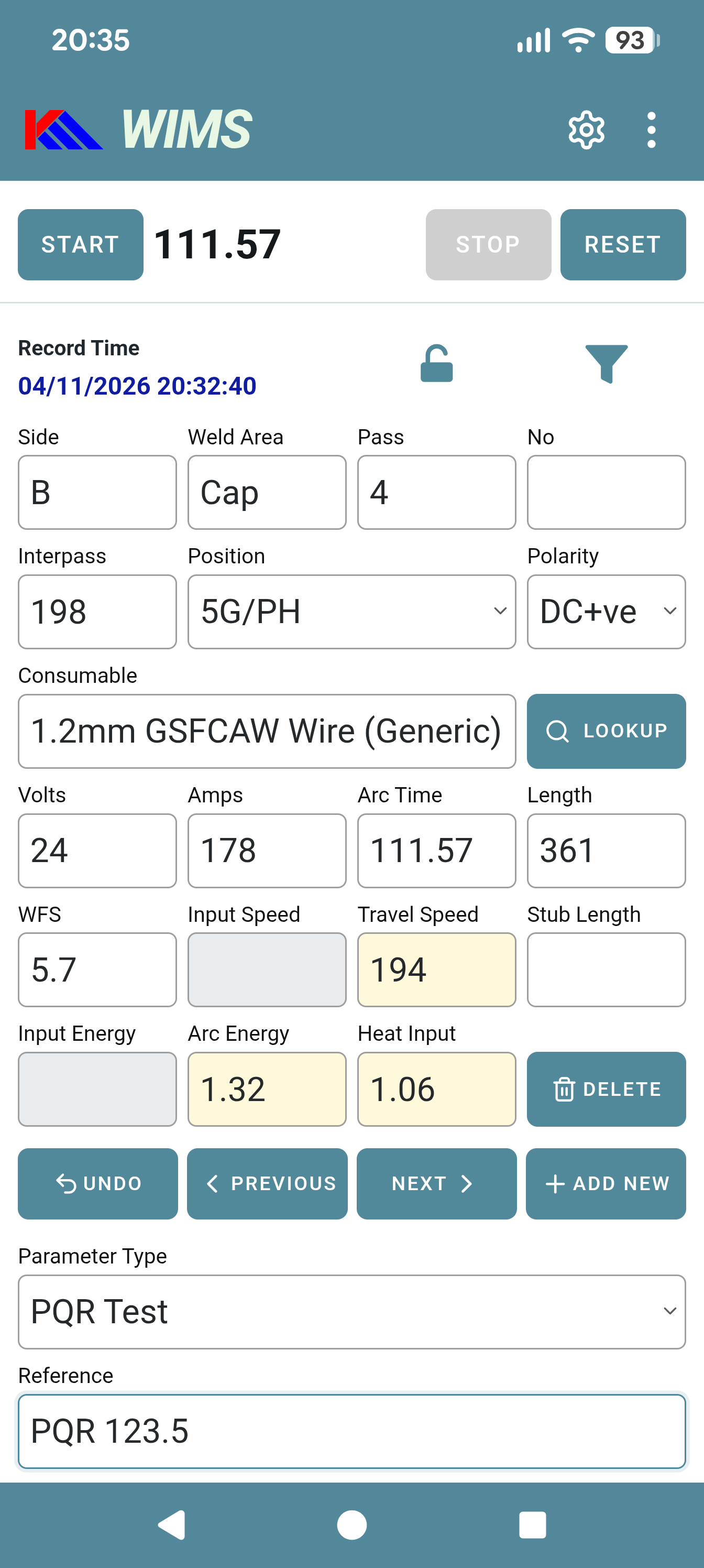
The App starts with a new record and creates a record time, though this will be updated if you click the stopwatch start button. Fill in the recorded parameters if available during welding and click the Stop button when the welder finishes. Input the Length (or ROL) and if there is sufficient information, the Travel Speed, Arc Energy, and Heat Input will be calculated by the most accurate method available. If you are recording a complete weld length, you can stop and restart the stopwatch when the welder changes electrode or stops to change position. There are other parameters further down the page including the input and output units. There is also a Notes field that you can drag to expand if desired. You may notice that there is a Project field, and also a Project ID field. If you are not intending to synchronise with wims.org.uk, you can ignore the Project ID one. You’ll notice that the calculated fields – Travel Speed, Arc Energy, and Heat Input have yellow backgrounds, and also two fields with light blue/grey colouring. This indicates optional overrides. For example, many Sub-Arc machines have an accurate preset travel speed and if an Input Speed is input, the App will ignore the Arc Time and Length inputs and use the Input Speed as the calculated Travel Speed. Similarly, if you are using a portable arc monitoring system, and using WIMS offline as a backup or means to record additional information, you may choose to use the system’s total run energy figure so that the calculated Arc Energy and Heat Input match. |
|
Further down the page, above the Units section, you will notice additional consumable parameters: 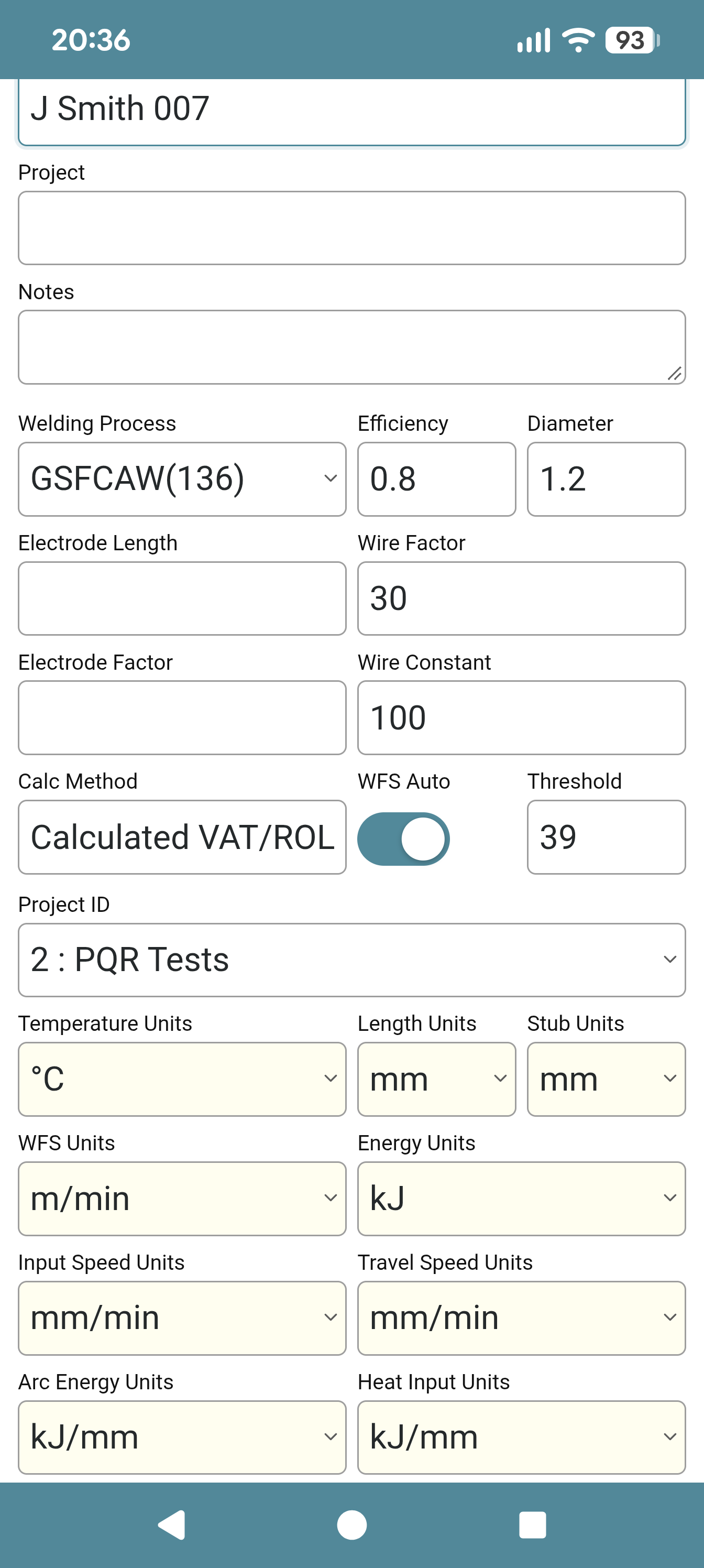
If you make use of the Consumable Lookup button further up the page, most of these variables will be filled in when a new consumable is selected. Just under the Wire Constant field are two options that need further explanation; WFS Auto and Threshold. In an ideal world, all welding sets would use the same Wire Feed Speed units, but this is sometimes not the case due to different manufacturers of owned wire feeders, or additional hire sets required. Most engineers will prefer to work in one set of units, so the App will recognise odd inputs to the WFS field if WFS Auto is turned on. If you are working with WFS units of m/min and you put in a value higher than the threshold (likely to be in/min), then the input value will be converted from in/min to m/min, when you exit the field. This works in the opposite direction when you are working in in/min and you input a value less than the threshold. If you prefer to record the values in the actual set units, just change the WFS Units instead using the dropdown. When you are satisfied with all the values recorded, using the Previous, Next, or Add New buttons will save the record. Note that holding down the Previous or Next button will scroll through all the records at about 10 records per second. As long as there is more than one record present, moving onto a new record will probably change the small padlock icon to a red closed version: 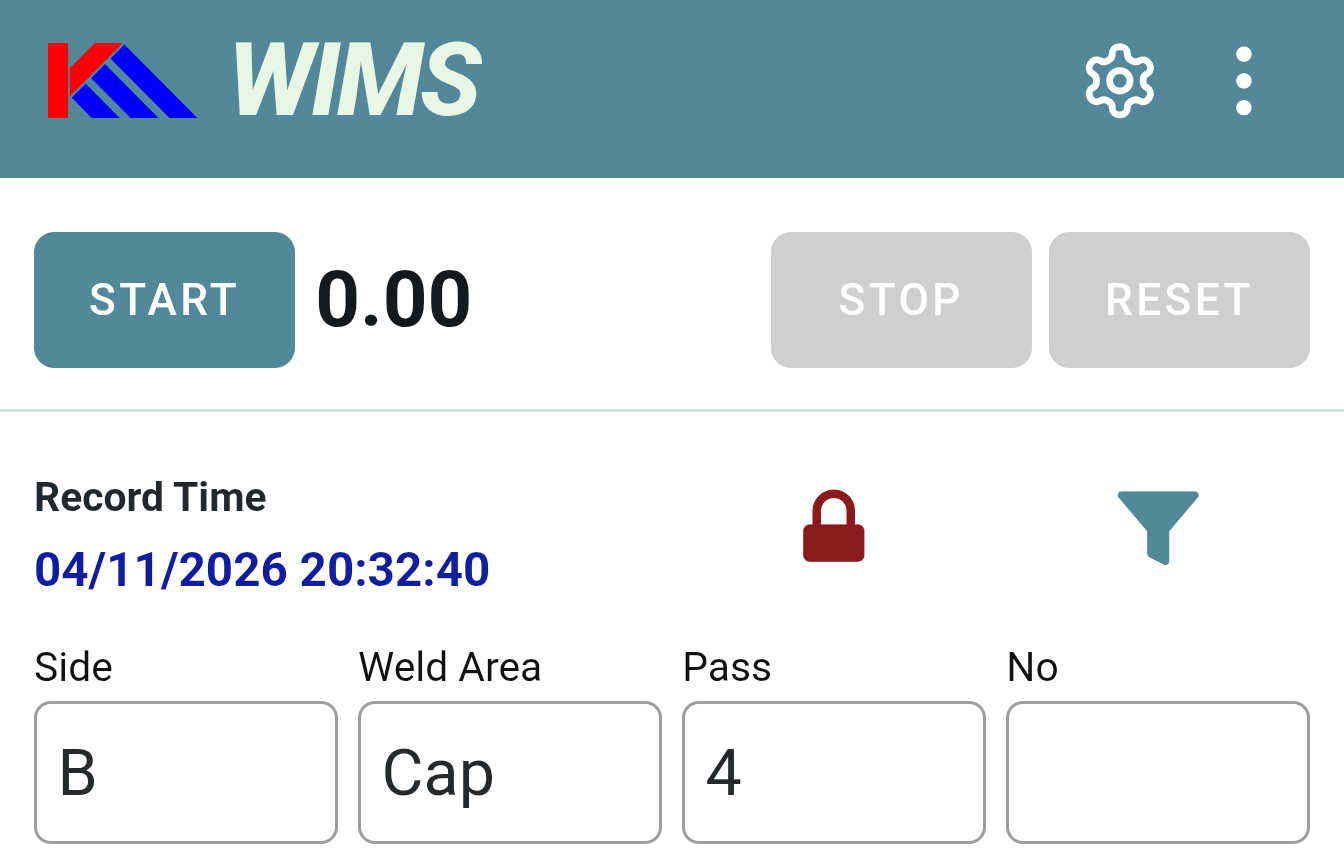
This only occurs if the record was saved with a valid Arc Energy figure and is designed to prevent accidental modification of valid records. When the red padlock is showing, any what-if changes you make, eg. to output units, are not permanent and will disappear if you move off the record and return to it, or if you tap the Undo button. If you do want to update the record, this is still possible by tapping the padlock icon so that it shows the green open version. Important: do not play with the stopwatch while the padlock is unlocked because if the record isn’t locked, it will change the Record Time. You can still Undo this, or lock the record again before moving off the record, but if you forget and accidentally save it, you can’t change this value within the App apart from resetting it to the current datetime. |
|
Filtering Records To the right of the padlock icon is a filter icon (looks like a pouring funnel). Filtering is used to make moving around the records easier and affects several other functions, eg. record export/share, deleting multiple records, and uploading records to wims.org.uk. When you click the green filter icon, you are presented with this screen, where you can select the Parameter Type, Reference, Welder, and Date range: 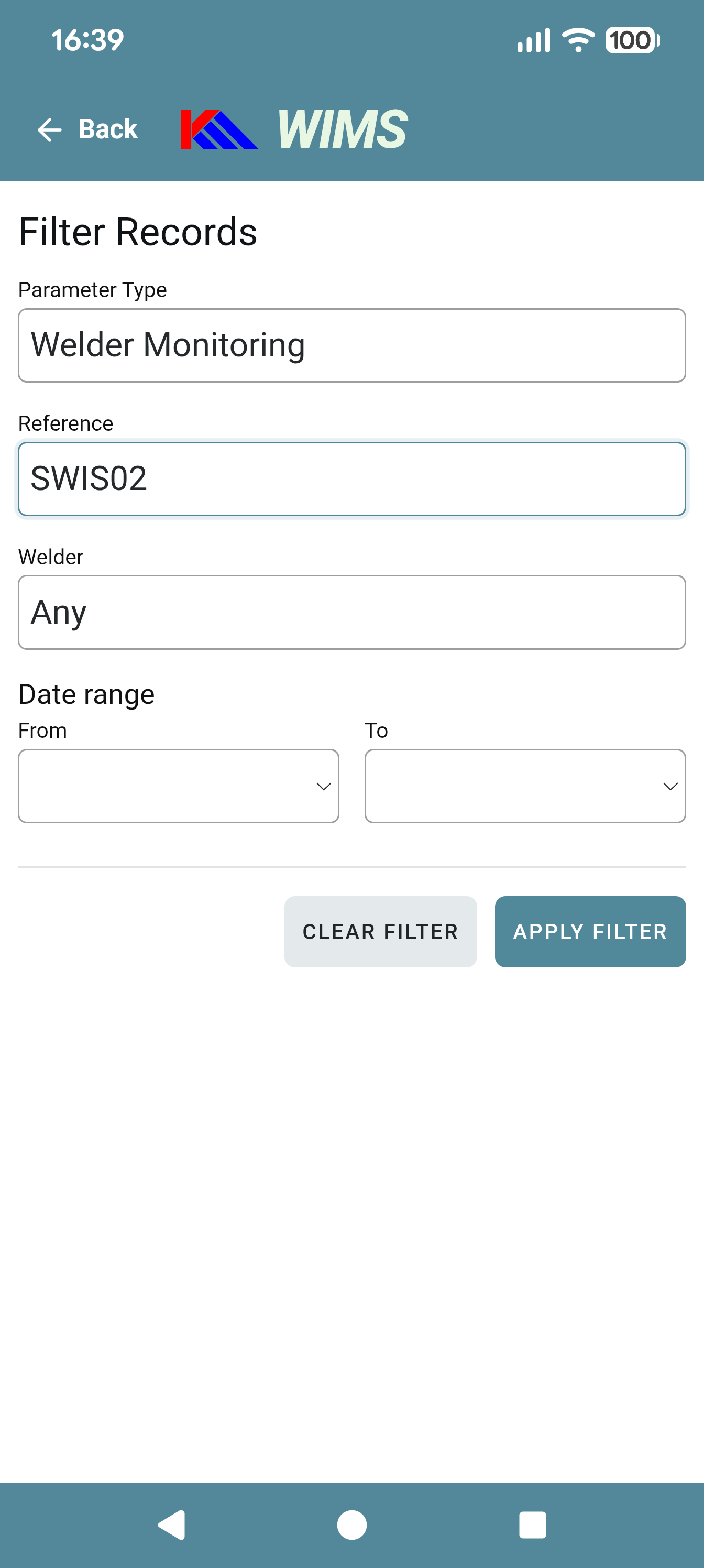
If the filter has at least one matching record, Apply Filter activates the filter and returns you to the main screen, where the filter icon will have turned red. You can remove the filter by just tapping the red filter icon on the main screen. |
|
Import & Export of Parameter Records The 3 dot menu at the top right of the screen has options to Import or Export the welding parameter records: 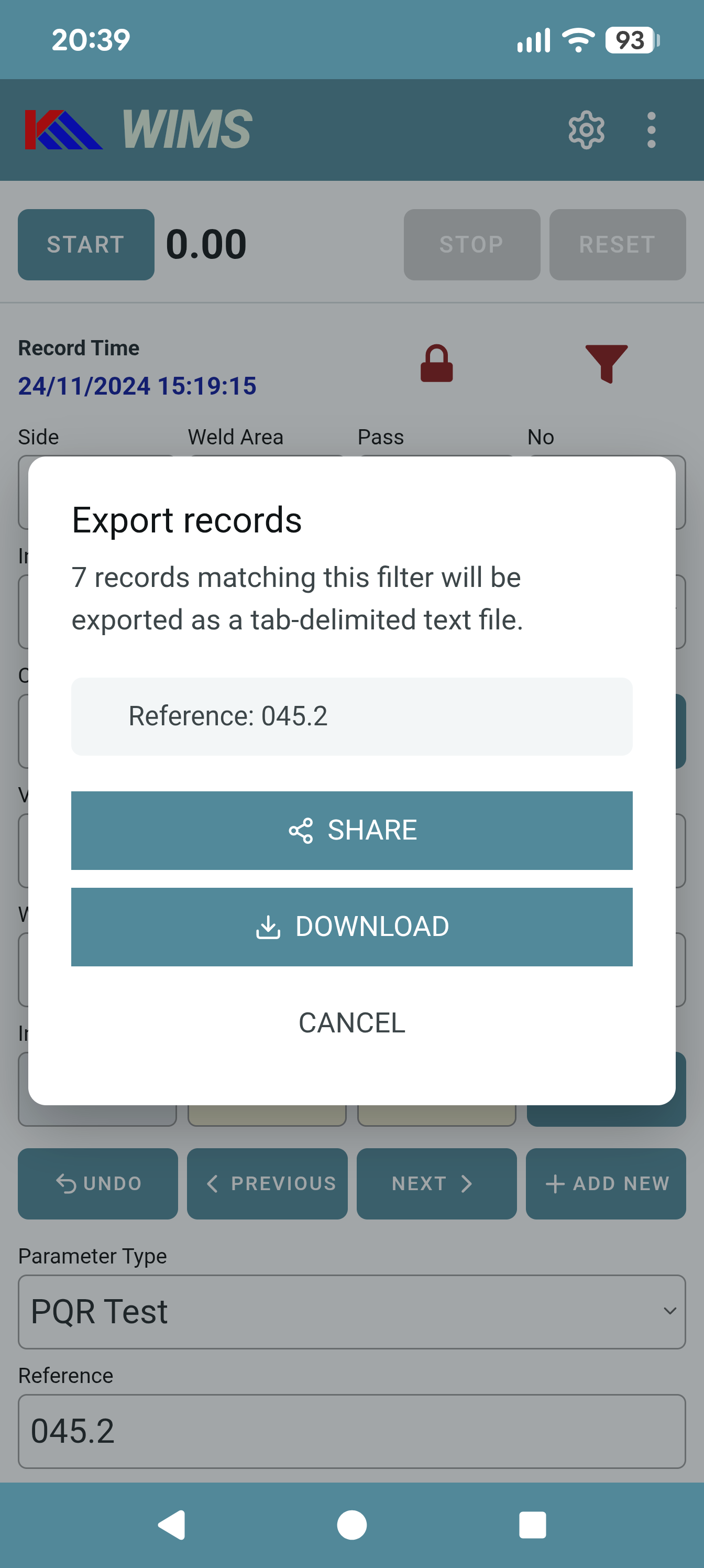
If a filter is in place, export will only operate on records matching that filter. All exports are in tab-delimited format. On Android and iOS, the Share option will also be available, provided that WIMS offline is installed as a PWA. The corresponding Import function will automatically import tab-delimited or CSV formats. These should always have the correct fieldnames in the top row. It’s easier to create a suitable import file if you export a couple of records and use that file as an initial template. |
|
Consumables In normal use, WIMS assumes that the user has already setup consumables, and will select the correct one using the Lookup button. The advantage of this approach is that any existing shortcut variables for GMAW, FCAW or SMAW processes will be loaded along with the consumable diameter, welding process, arc efficiency. It is possible to fill in the consumable name, diameter, and process separately, if preferred. This is why there is a separate Lookup button rather than a simple dropdown. To browse, add, or edit the consumables, tap the three dot menu icon at the top right of the screen and select Consumables: 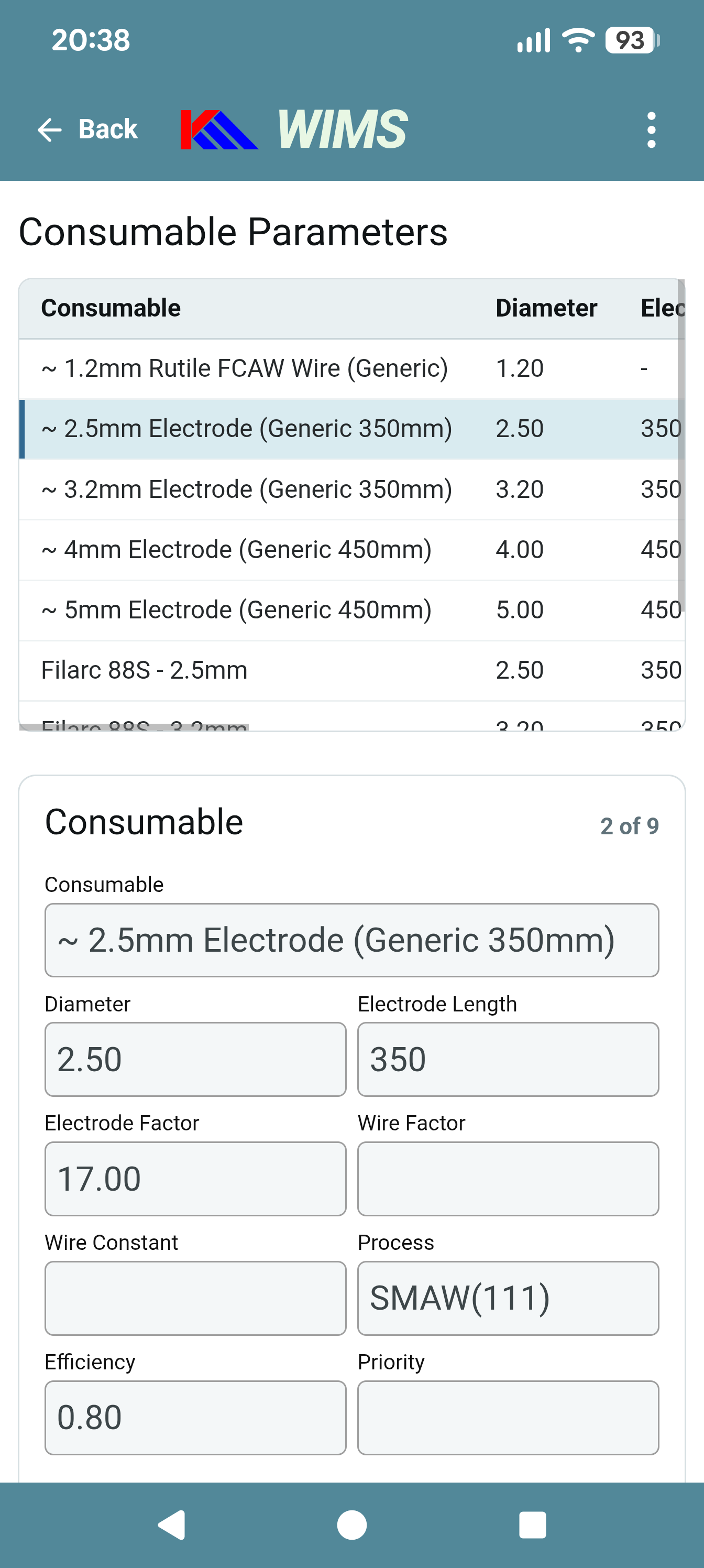
You can scroll up and down through the records using the table view, or the Previous / Next buttons at the bottom of the screen. Here you’ll also find buttons to Add New, Edit, or Delete individual records. Some of these parameters are self-explanatory, but for more information on Electrode Factor, Wire Factor, and Wire Constant, please see: https://wims.org.uk/information_list.php?tab=10 The order the consumables are presented on the main screen lookup can be altered using the Priority value. Please note that for the consumables to work correctly, each one has to have a unique name and the best (and least confusing) way to do this is to incorporate the consumable diameter in its name. Some SMAW electrodes are available in different lengths for the same diameter, so if you plan to use the volumetric shortcuts, include the length in the Consumable name too. The 3 dot menu at top right of this screen allows you to Export or Import the consumables in tab-delimited text format. It is best to export them first to provide a template. If the Consumable Name matches when importing, the existing record will be updated. |
|
Sync with wims.org.uk WIMS offline can (1-way) synchronise its records with wims.org.uk if the user has an account there. To set this up, visit the UserInfo settings when logged in at wims.org.uk, and press the “Reset API Key” button. If on the same device as the offline version, press the Copy API Key button and paste it into the API Key in the Settings page of WIMS offline: 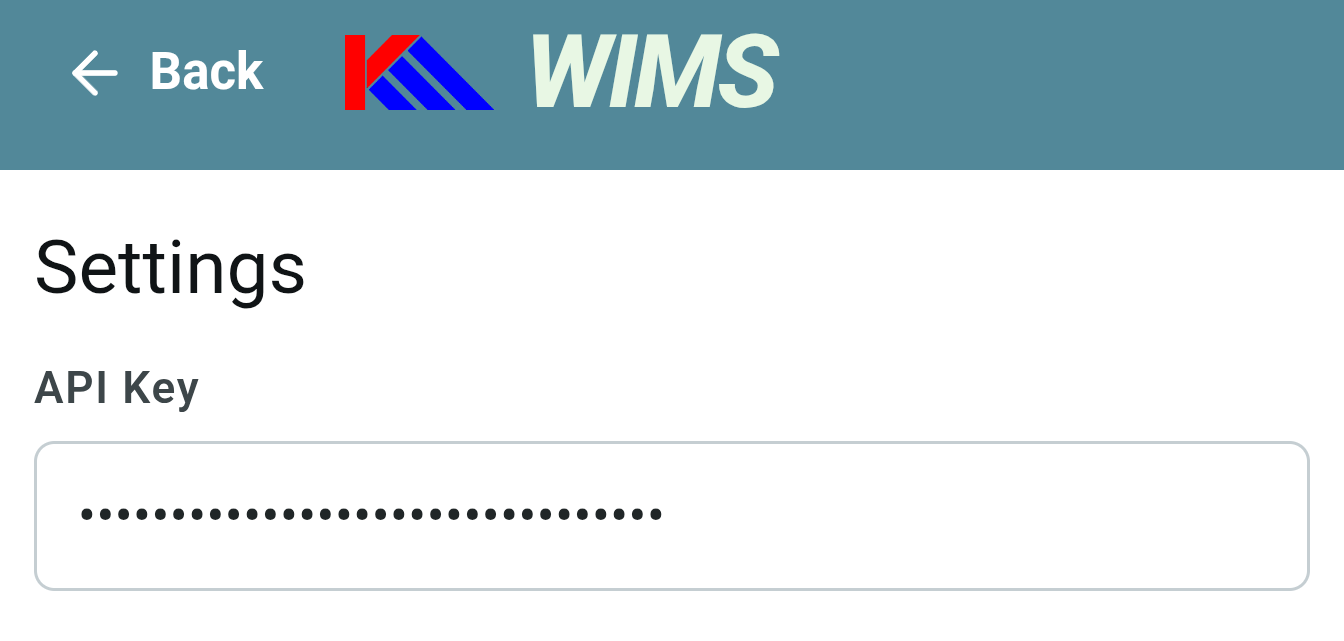
If using a different device, just manually input the API key so that it matches the one at wims.org.uk. This enables two functionalities: Update Projects will pull down any existing projects that you have access to on wims.org.uk into the ProjectID dropdown. This will include any that belong to you, and any shared with you via the Shared Key (also in your UserInfo at wims.org.uk). 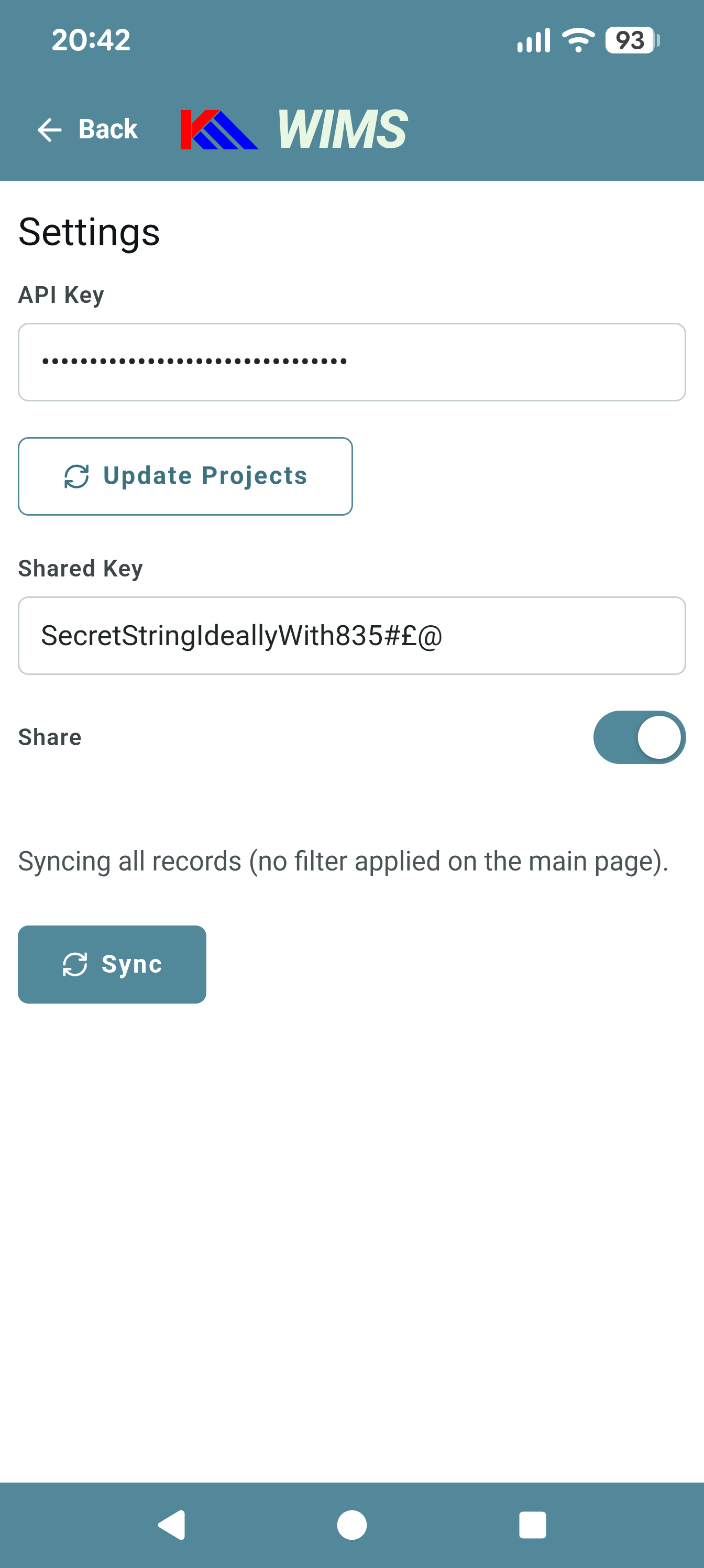
If you are using a Shared Key to be able to view colleagues’ records at wims.org.uk, this should be exactly the same as the one in your UserInfo there. It is also set in the settings screen. Unlike the API Key which is generated automatically in your wims.org.uk UserInfo screen, the Shared Key must be defined by one of the users planning to share with you. Everyone with the same key can see each other’s records or use them to produce parameter reports, but crucially, only you can edit or delete your own records. It is important that this Shared Key is fairly complex, ideally containing a mix of alphanumeric characters in mixed case. The Sync button will send any records in the current filtered view up to wims.org.uk, and you retain ownership of them. The records will not be duplicated or updated at wims.org.uk because the Record Time is checked to see that it doesn’t match any existing records belonging to you before sending them. If the Share toggle is on, then when you sync your records, they will be sent with the Shared Key – enabling the people you share with to see them as well. Note: if you've followed these instructions and can't get sync to work, please check whether your company has blocked access to this facility. In this instance you may see warnings such as "Couldn't get a valid response from wims.org.uk". If you see a message, "The API key was rejected", this may be the actual cause due to a mismatch between the App and the main wims.org.uk site, but it's also possible that your IT has blocked access to the helper file. |
|
Data Storage & Privacy Architecture Section 1: End-User Summary Where is my data stored? When you use offline.wims.org.uk, all of your records, forms, and data live exclusively inside your device's web browser using a localized storage technology called IndexedDB. Think of it like a local desktop software application (such as Microsoft Word or Notepad): - Your device is your vault: Data is written directly to your phone, tablet, or computer's internal storage.
- No automatic cloud uploading: Simply entering data into the app does not send it across the internet or upload it to any remote servers.
- Full offline capability: Once installed as a Progressive Web App (PWA), the app runs 100% offline. You do not need an active internet connection to create, edit, or view your records.
How does my data leave my device? Your data remains entirely isolated on your local hardware unless you explicitly initiate an action: - Manual Data Export: If you choose to export your data (e.g., as a backup file or spreadsheet), the file is generated locally on your device and saved to your local downloads folder.
- Cloud Synchronization: If you choose to use the online sync feature with wims.org.uk, the app will establish a secure, encrypted connection (HTTPS/TLS) to transmit your local data to the central WIMS server. This only occurs when you are online and actively trigger or authorize a sync. For this to work, you would need to setup an account at https://wims.org.uk and create an API Key in your UserInfo settings.
Section 2: Technical & Security Specification (For IT / Security Professionals) This section details the client-side architecture, data isolation boundaries, network behavior, and security model of the offline.wims.org.uk Progressive Web App (PWA). 1. Architectural Overview & Storage Engine - Storage Technology: The application utilizes IndexedDB, a transactional, object-oriented database system embedded natively within the user's web browser user agent.
- Service Workers & Caching: Application assets (HTML, JavaScript, CSS, icons) are cached locally using the Cache Storage API via a registered Service Worker. Once the initial application shell is fetched and registered, subsequent application boots execute entirely from the local cache, enabling zero-network dependency.
2. Data Boundary & Origin Isolation - Same-Origin Policy (SOP): All stored data is strictly bound to the origin (https://offline.wims.org.uk). Standard browser sandboxing prevents any third-party websites, external scripts, or cross-origin requests from accessing the IndexedDB instances associated with this origin.
- Local Persistence: Data resides in the browser profile directory on the client device's physical storage (e.g., encrypted local disk if BitLocker/FileVault/mobile device encryption is active). Data persistence is subject to standard browser quota management policies, but standard PWA lifecycle practices request persistent storage permission to prevent accidental browser cleanup.
3. Network Behavior & Sync Protocol - Default Network State (Zero Egress): Standard read/write operations against IndexedDB occur locally via client-side JavaScript execution. In default operation (and completely while offline), zero network traffic (HTTP GET/POST) is generated.
- Explicit Synchronization (wims.org.uk):
- Transport Security: All sync operations utilize Transport Layer Security (TLS 1.2/1.3) via HTTPS REST APIs connecting to wims.org.uk.
- User-Initiated Trigger: Data egress occurs strictly upon API Key authentication and explicit user invocation.
- Authentication & Authorisation: Sync sessions require standard secure token authentication (REST API Key over HTTPS) to authorize data transmission to the target server instance.
4. Enterprise Compliance & Security Summary | Feature | Implementation / Control | | Data at Rest (Client) | Protected by host OS disk encryption (BitLocker, FileVault, iOS/Android hardware encryption) and browser origin isolation boundaries. | | Data in Transit | Standard HTTPS/TLS 1.2+ encryption for all sync traffic to wims.org.uk. Zero unencrypted plain-text transport. | | Data Sovereignty | Client data remains local to the physical endpoint hardware until explicitly synced or exported by the authenticated local user. | | Third-Party Telemetry | No automatic third-party analytics or external database logging of user entries. | | Export Control | File exports (CSV, JSON etc.) are compiled entirely client-side using JavaScript Blob objects without server rendering or relay. | 5. Blocking All Connections to WIMS.org.uk If a company wishes to block all sync functionality with wims.org.uk, this can be easily achieved without blocking the whole site. All sync options (reading current projects from or writing records to) can be blocked by denying access to:
https://offline.wims.org.uk/api
Specifically, the file:
https://offline.wims.org.uk/api/wims.php If the user tries to access the Update Projects or Sync button, the PWA App will then return a message: "Couldn't get a valid response from wims.org.uk" - if wims.php appears missing, or,
"The API key was rejected" if you've blocked the folder with a "403 Forbidden" response. |
|